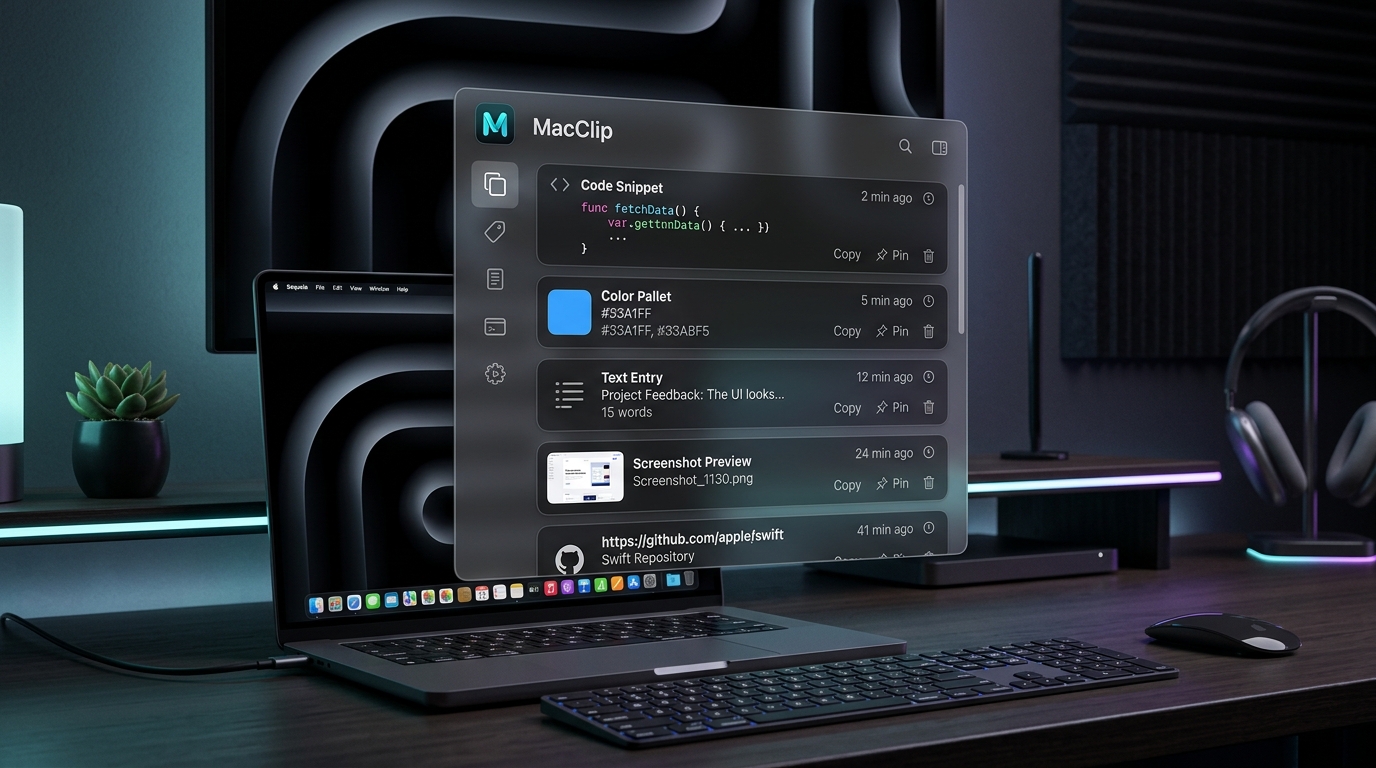
Never lose an important snippet, link, code block, or screenshot again. MacClip brings native, lightning-fast clipboard history, instant cursor summoning with Option + V (⌥ + V), and auto-paste directly into your active apps.
Audited binary compiled natively on macOS
Clips never leave your Mac's encrypted storage
Switches focus and simulates ⌘+V instantly
Under 2MB install size with 0% idle CPU drain
MacClip replaces cluttered dock apps with a floating frosted acrylic window that appears right beside your cursor.
Press Option + V from any app or window. MacClip glides in directly beside your active mouse cursor. Double-tapping ⌘ + C also summons the panel seamlessly.
Click any item or press Return / Enter. MacClip automatically switches focus back to your previous application and executes ⌘ + V into your active input field.
Capture screenshots with ⌘ + ⌃ + ⇧ + 4. MacClip generates instant high-res thumbnails with pixel dimensions and file sizes, ready to paste into Slack, Figma, or Mail.
Copied a JSON response, token, or terminal command an hour ago? Summon MacClip and start typing. Hundreds of clips filter in real-time with zero lag.
Keep boilerplate email templates, code snippets, and commands permanently pinned. Clicking "Clear all" wipes unpinned history while keeping pinned items protected.
No telemetry, no remote cloud database, no monthly subscriptions. All clips are encrypted on your local Mac storage and confidential password managers are automatically ignored.
Master your clipboard flow without ever having to lift your hands from the keyboard.
| Action | Shortcut / Key |
|---|---|
| Open Clipboard History | Option + V (⌥ + V) |
| Alternative Summon | Double-Tap ⌘ + C |
| Auto-Paste Selected Clip | Return / Enter or Click |
| Take Screenshot to Clipboard | ⌘ + ⌃ + ⇧ + 4 |
| Dismiss Floating Panel | Escape |
| Pin / Protect Clip | Click the Pin icon |
| Clear All Unpinned Clips | Click "Clear all" in header |
No complicated configuration. Built to feel right at home on modern macOS.
Get the verified Universal DMG package directly from our secure servers. Compatible with Apple Silicon (M1/M2/M3/M4) and Intel 64-bit.
Open the DMG file and drag MacClip.app directly into your Mac's Applications folder. Launch it from Spotlight or Launchpad.
Allow Accessibility when prompted (so MacClip can auto-paste directly into your target app). Press Option + V and enjoy!
No. MacClip has zero network transmission code and operates strictly offline. Your clipboard history never leaves your local Mac.
Yes! MacClip was designed specifically to give Mac users the seamless, instantaneous clipboard experience that Windows users love with Win+V, using the comfortable Option + V (⌥ + V) shortcut.
MacClip supports macOS Monterey (12.0), Ventura (13.0), Sonoma (14.0), and Sequoia (15.0) on both Apple Silicon (M1/M2/M3/M4) and Intel processors.
When you grant Accessibility permissions, MacClip automatically restores focus to your active app (e.g. VS Code, Chrome, Slack) and types ⌘ + V for you on selection.